
Fixflo AI reporting lets your tenants report a repair by chatting with Aidenn, an AI repairs assistant. Aidenn asks the right troubleshooting questions before the issue is logged, so the report that reaches you already has the detail you need to act.
How tenants get to AI reporting
AI reporting can be shown to your tenants in one of two ways, depending on your default reporting option.
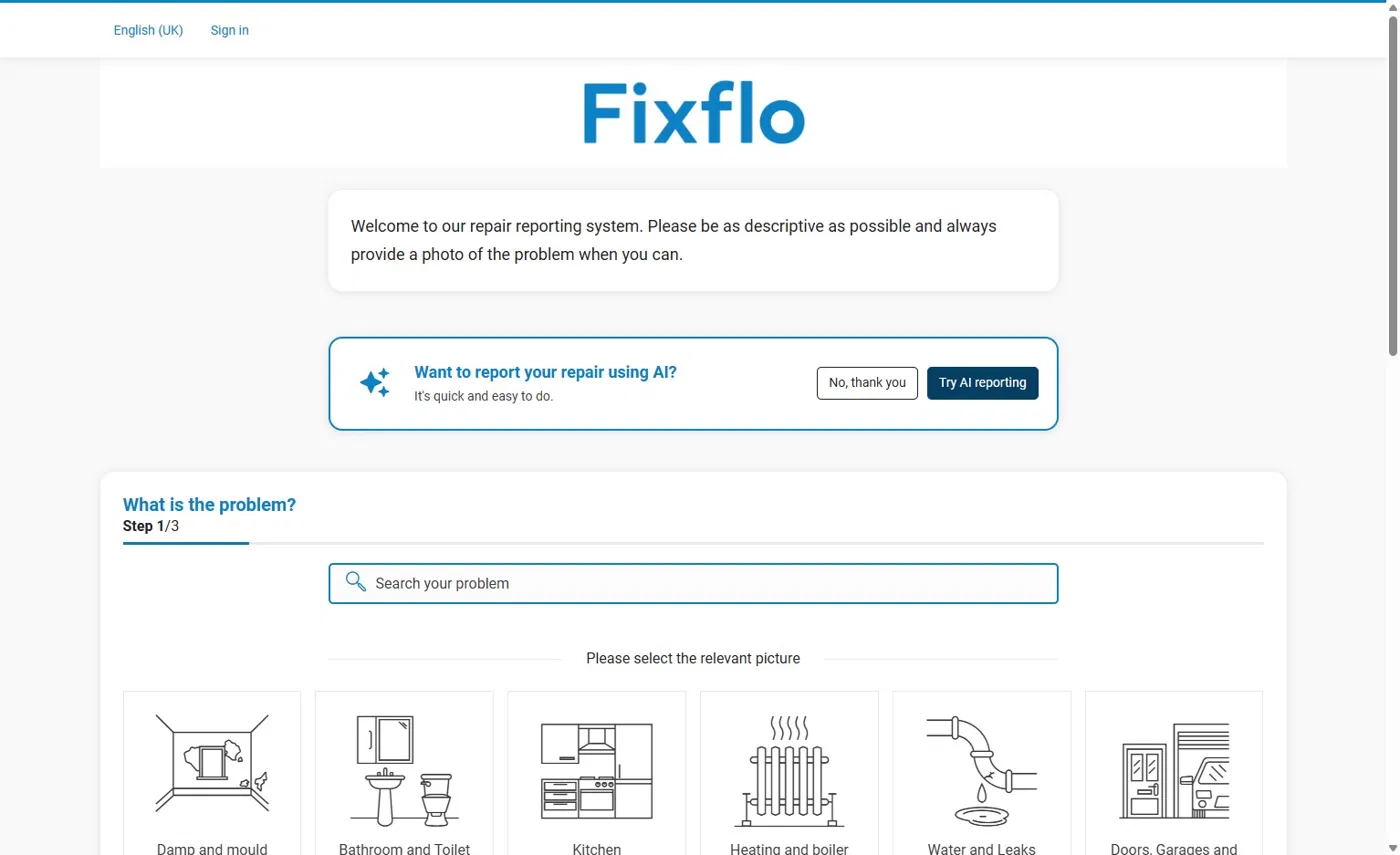
As a banner on the standard reporting page:
Tenants see the message "Want to report your repair using AI?" above the picture tiles. Selecting Try AI
reporting takes them to the AI screens. Selecting No, thank you lets them carry on with standard reporting.
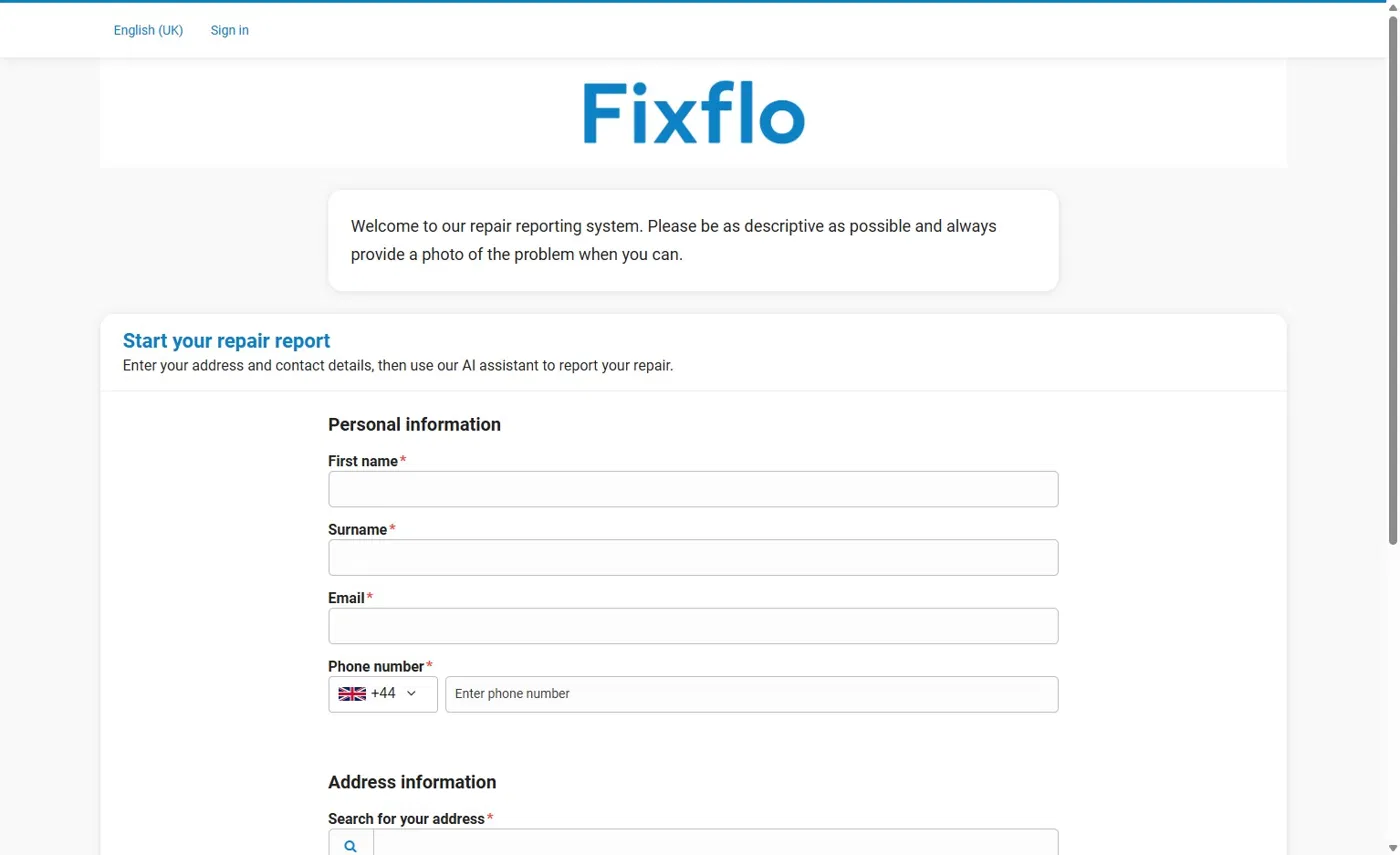
As the default reporting screen:
Tenants go straight to the AI reporting page and are asked to start their repair report.
To choose which one your tenants see, go to Fixflo AI reporting - Setting your default reporting option.
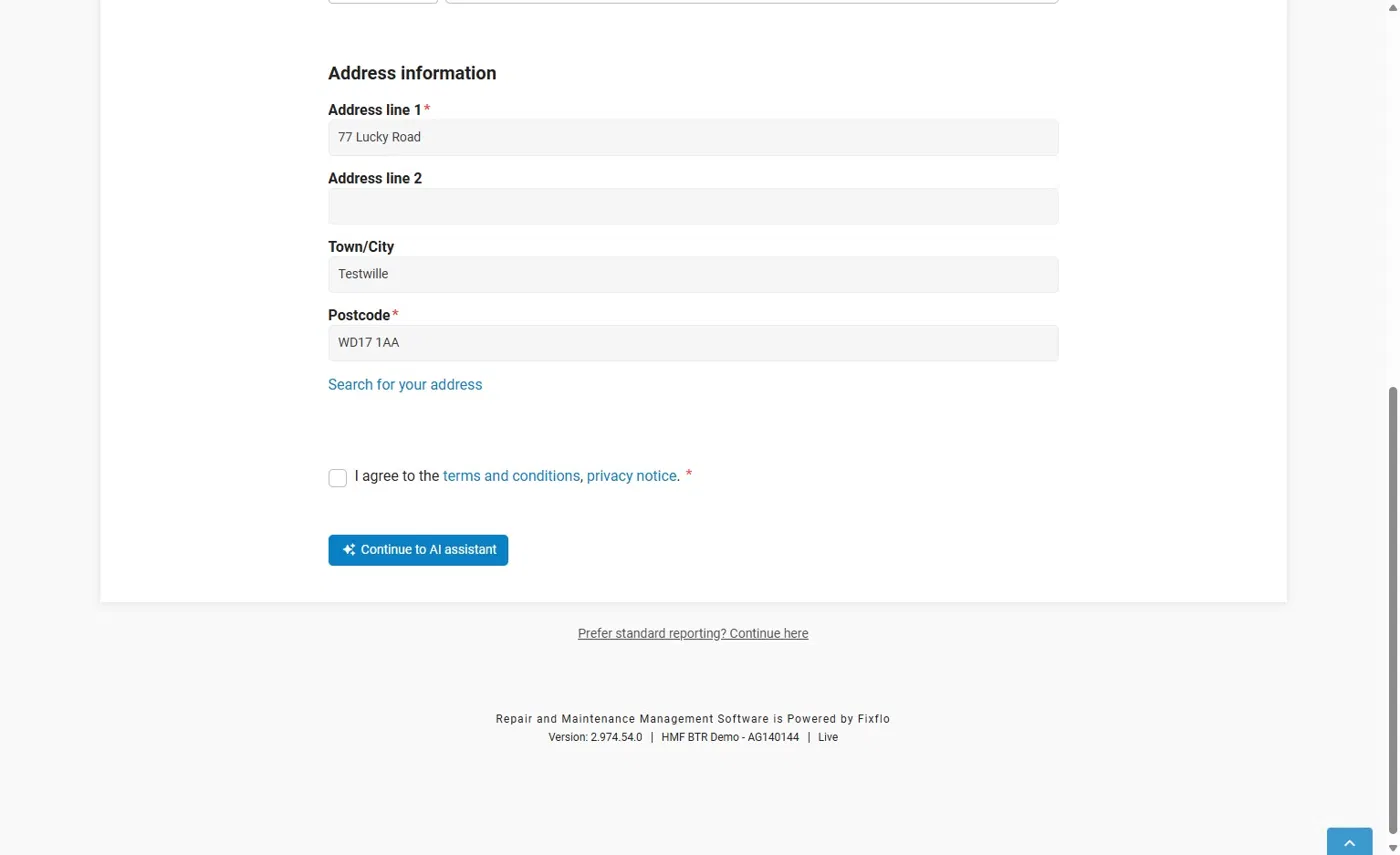
Step 1: Enter contact and address details
The tenant enters their first name, surname, email address and phone number. All fields are required.
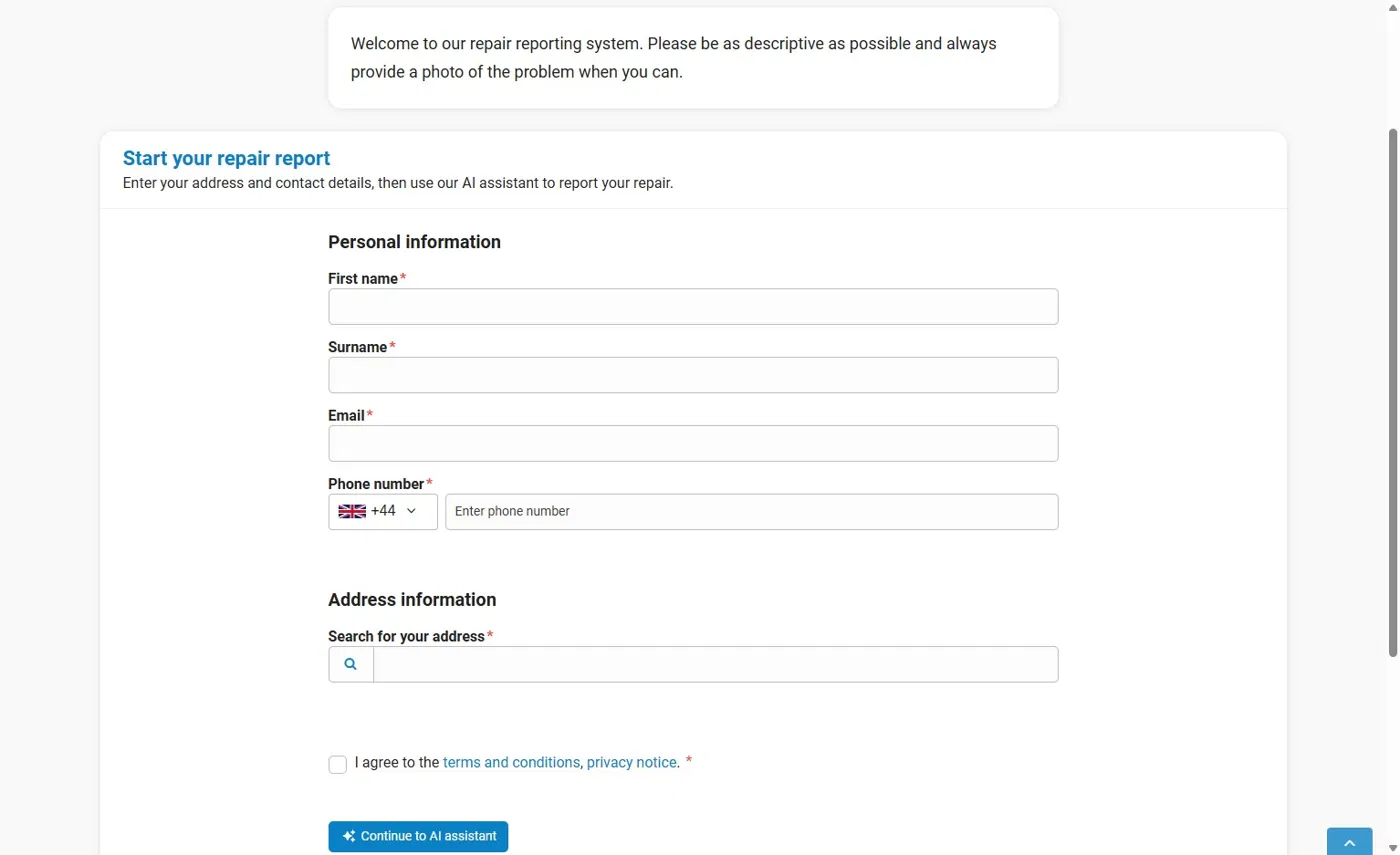
The tenant then searches for their address. If you have property selection enabled, they select from the properties available to them.
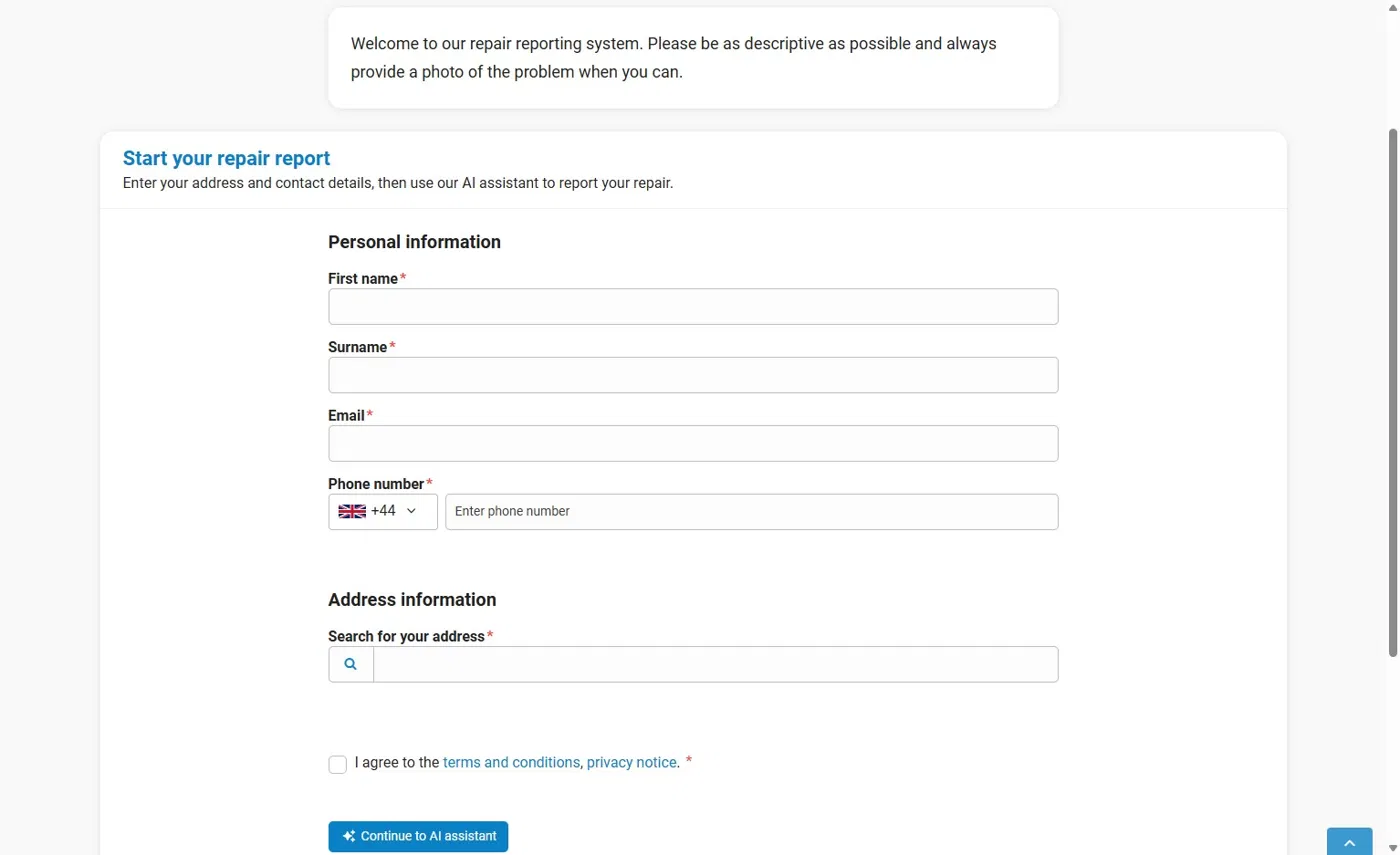
The tenant ticks the box to agree to the terms and conditions and privacy notice, then selects Continue to AI assistant.
Switching back to standard reporting
At any point, the tenant can leave AI reporting and use the picture-based reporting instead. They select Prefer standard reporting? Continue here, which appears below the form and at the top of the chat.
Step 2: Chat with Aidenn
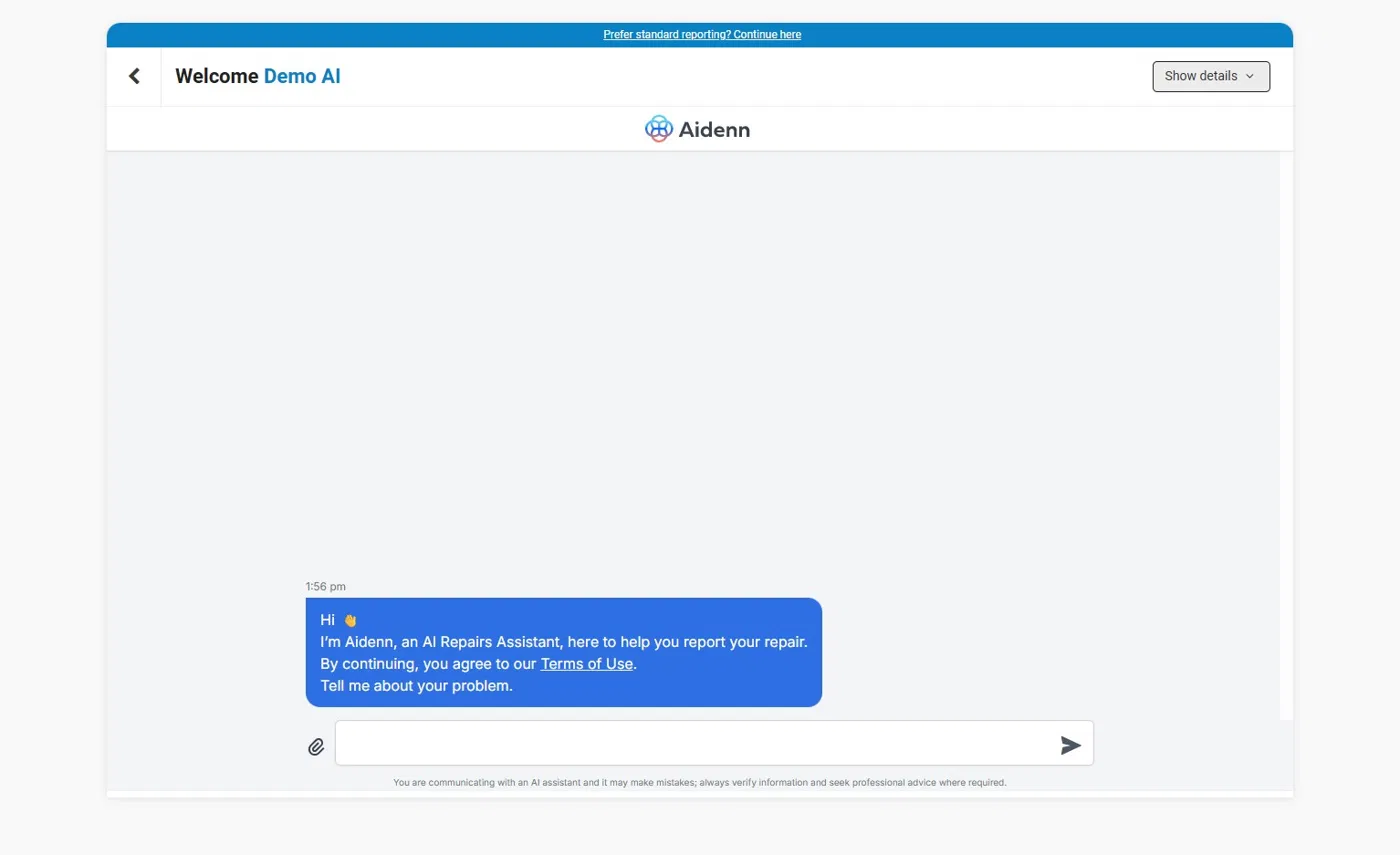
Aidenn asks the tenant to describe their problem. It then takes them through troubleshooting questions relevant to the issue, to make sure they have tried everything reasonably expected of them. Tenants can attach photos using the paperclip icon.
For each chat, Aidenn raises an issue under the appropriate fault type on the tenant's behalf.
Step 3: Confirm the report summary
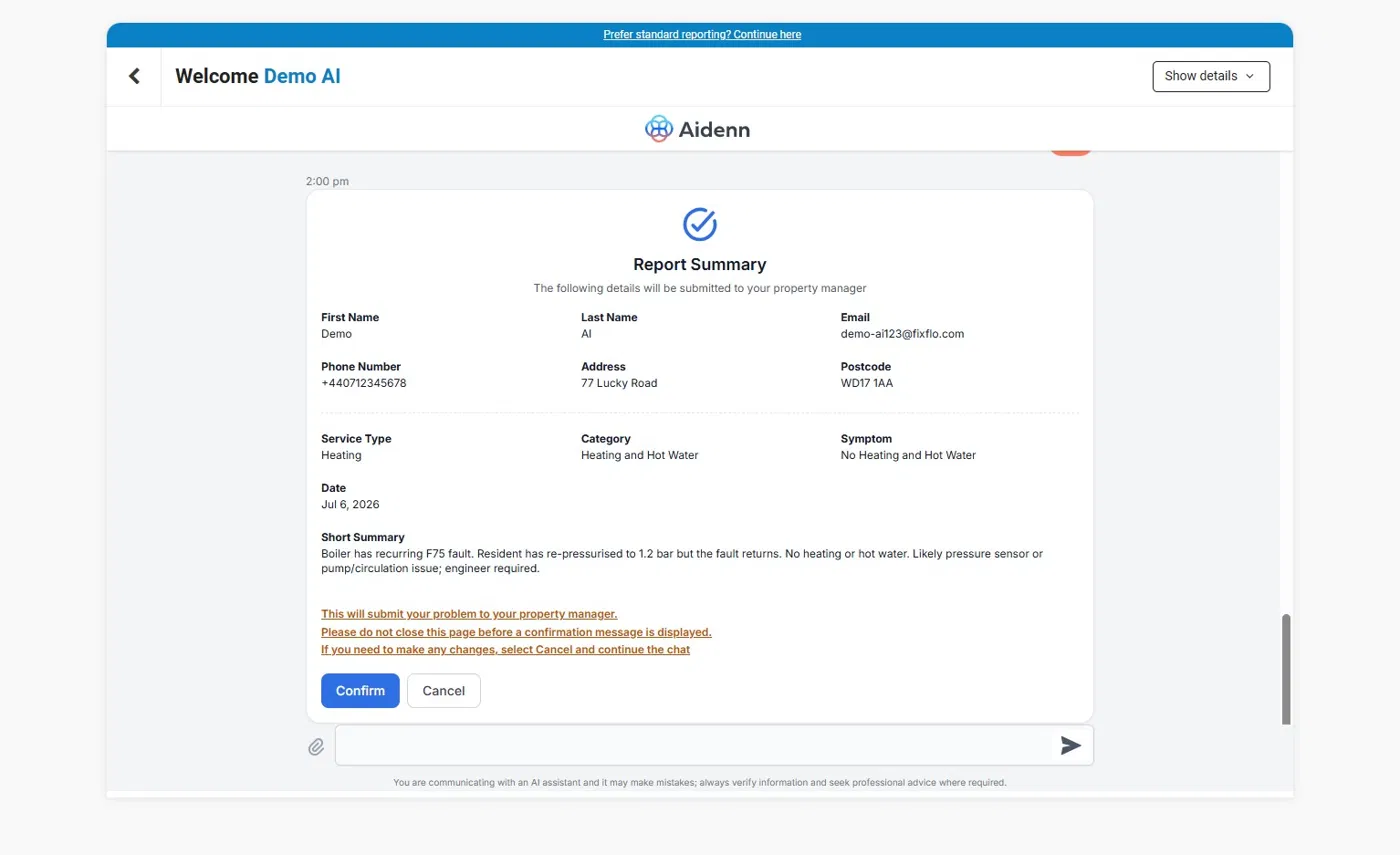
When troubleshooting is complete, Aidenn shows the tenant a Report summary. This lists their contact details and address, the service type, category and symptom, the date and a short summary of the problem.
The tenant selects Confirm to submit the report, or Cancel to return to the chat and make changes. They should keep the page open until they see a confirmation message.
Step 4: Confirmation
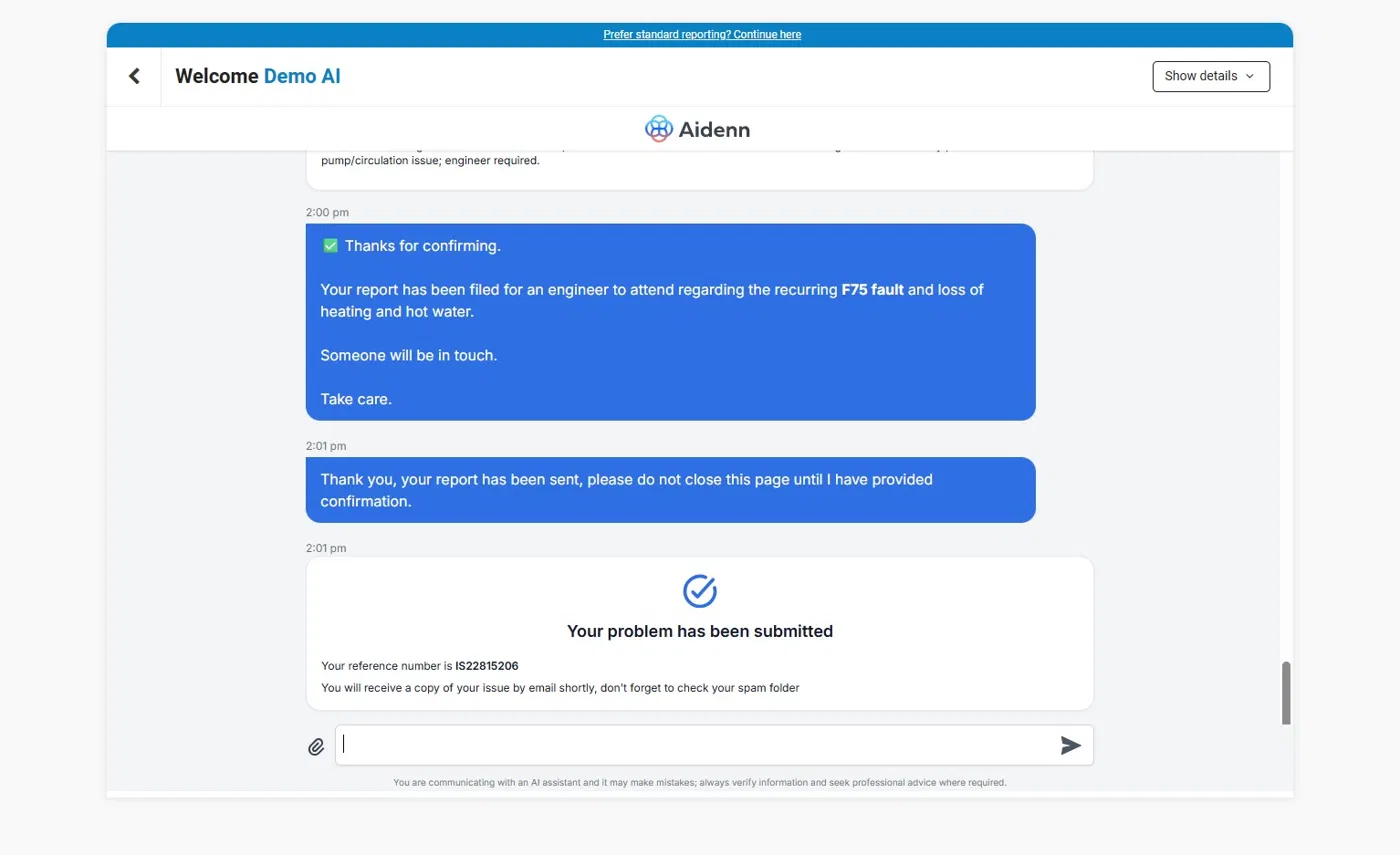
Once the issue has been created in Fixflo, the tenant sees the message "Your problem has been submitted" with their IS reference number. They also receive a copy of the issue by email.
What happens next?
To see what the issue looks like in Fixflo and how to action it, go to
Fixflo AI reporting - What happens in Fixflo when an issue is reported.
Was this article helpful?
That’s Great!
Thank you for your feedback
Sorry! We couldn't be helpful
Thank you for your feedback
Feedback sent
We appreciate your effort and will try to fix the article