
What is Section 20 Major Works?
Section 20 Major Works provides a central location for managing major works projects within Fixflo.
It allows users to create projects, track consultation stages, store documents and maintain visibility of project activity throughout the lifecycle of a major works scheme.
Instead of managing information across multiple systems, project details, documents and related issues can be accessed from a single record.
Key Benefits
Section 20 Major Works helps teams:
- Keep project information in one place
- Track progress through consultation stages
- Store and manage project documentation
- Link operational issues to major works projects
- View project activity through an audit trail
- Search and filter projects quickly
- Maintain visibility across multiple projects
Current Functionality
Section 20 Major Works currently includes:
- Major works project management
- Consultation stage tracking
- Document management
- Issue linking
- Project status management
- Search and filtering tools
- User assignment
- Audit history and activity tracking
Major Works List View
The Major Works List View provides an overview of all major works projects.
Users can:
- View all projects
- Search for projects
- Filter by:
1. Estate
2. Building
3. Property Manager
- Sort records
- Customise visible columns
Each project record displays key information, including:
- Project title
- Building or estate
- Estimated budget
- Management fee
- Project status
Creating a Major Works Project
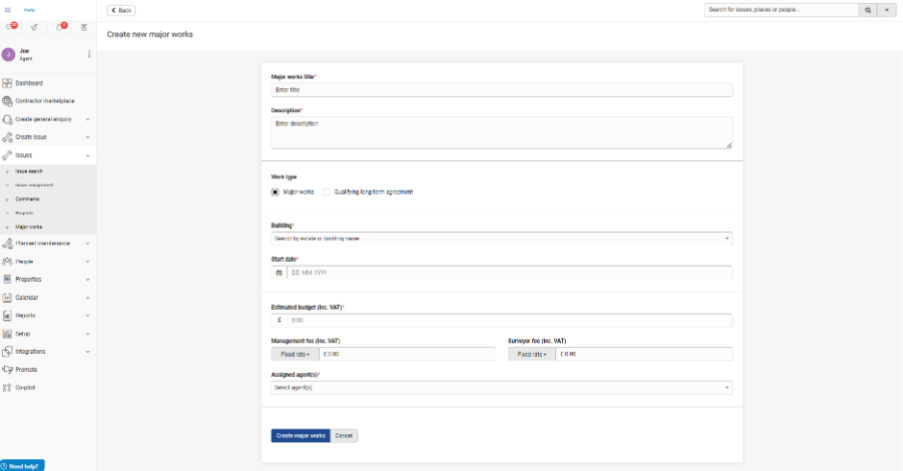
New projects can be created directly from the Major Works List View.
Project records can include:
- Title
- Description
- Estate
- Building
- Estimated budget
- Management fee
- Surveyor fee
- Assigned users
- Supporting documents
When creating a project, users can:
- Upload multiple documents
- Drag and drop files into the upload area
- Assign users to the project
Editing a Project
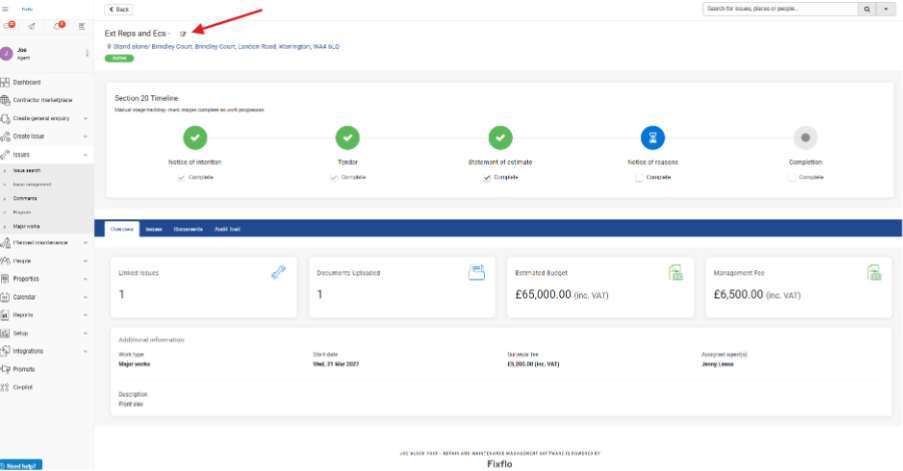
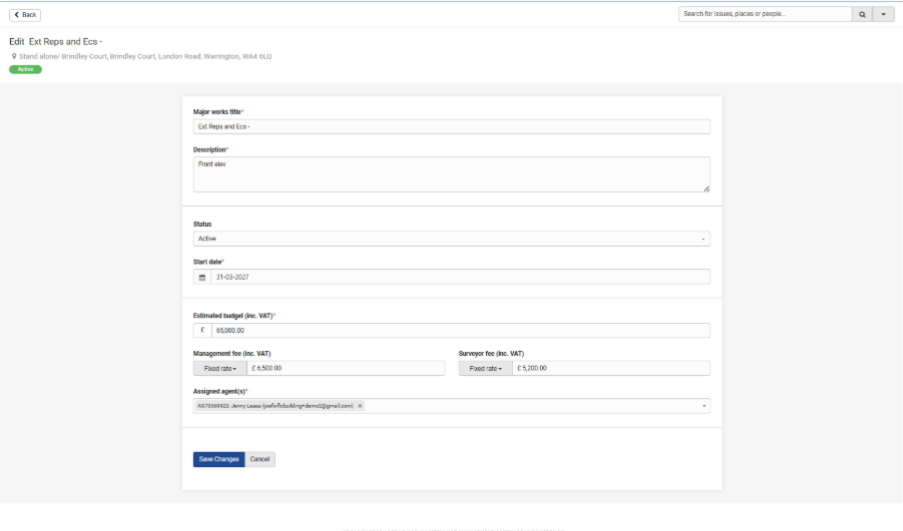
Project details can be updated at any time, including:
- Title
- Status
- Fees
- Assigned users
- Project description and details
Available project statuses include:
- Active
- On Hold
- Cancelled
- Dispensation
- Completed
Consultation Timeline
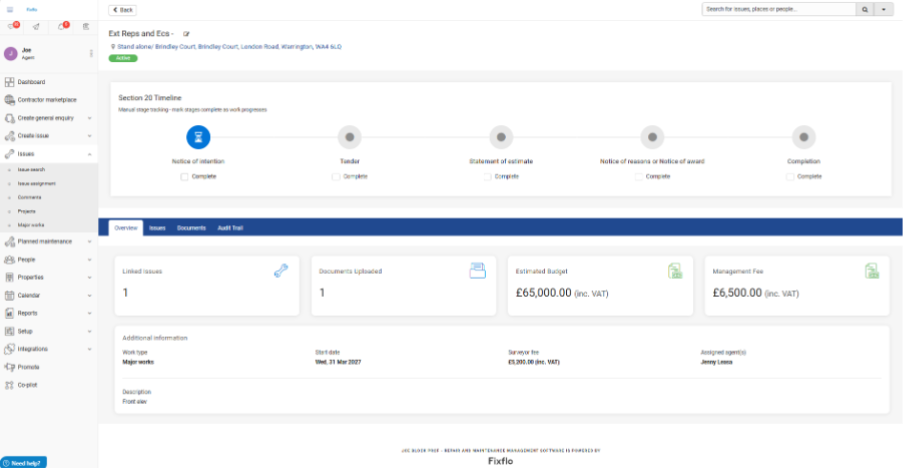
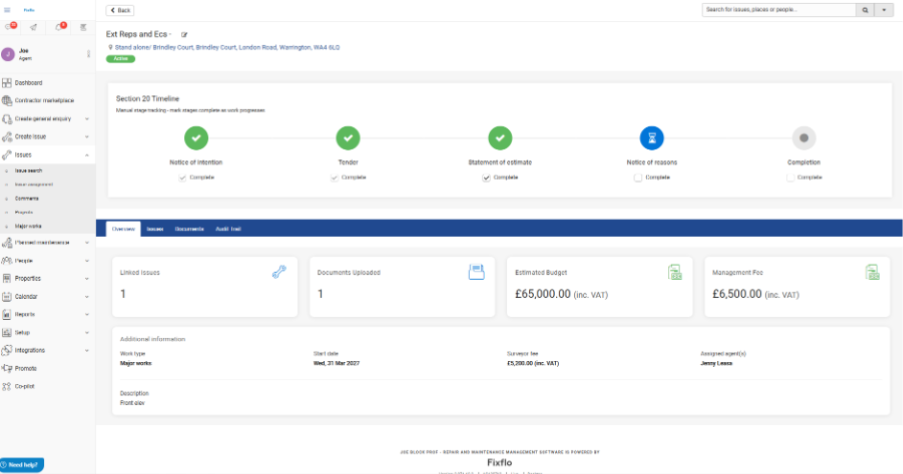
Each project contains a consultation timeline that tracks progress through the major works process.
The available stages are:
- Notice of Intention
- Tenders
- Statement of Estimate
- Notice of Reasons/Award
- Completion
The timeline provides:
- Visibility of current progress
- Completion tracking
- Sequential stage progression
Consultation stages must be completed in order and cannot be skipped.
Linking Issues
Projects can be linked to operational issues within Fixflo.
Users can:
- Link issues to a project
- Remove linked issues
- Search for available issues
This helps provide additional context by connecting day-to-day operational activity with major works projects. 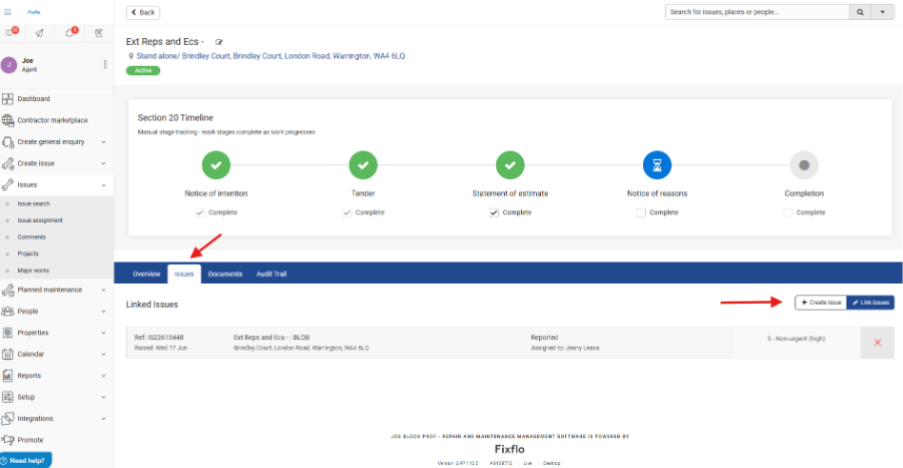
Document Management
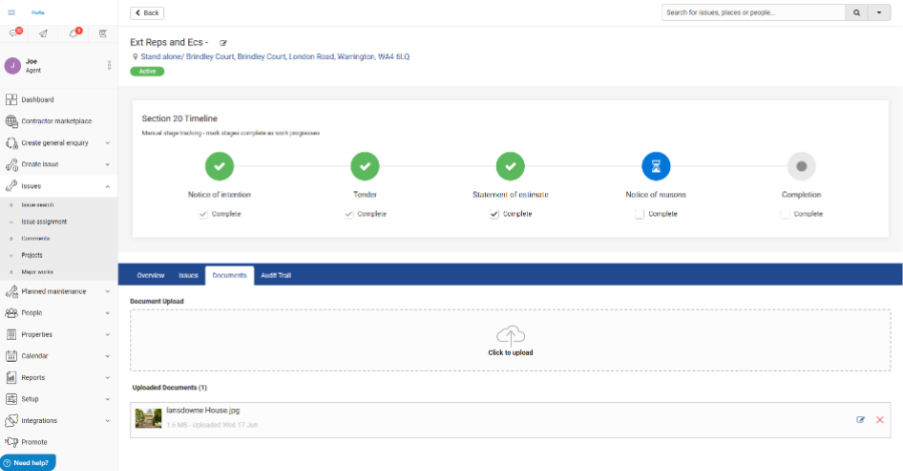
Each project includes a document management area.
Users can:
- Upload documents
- Delete documents
- Upload multiple files at once
- Use drag-and-drop file uploads
Audit Trail
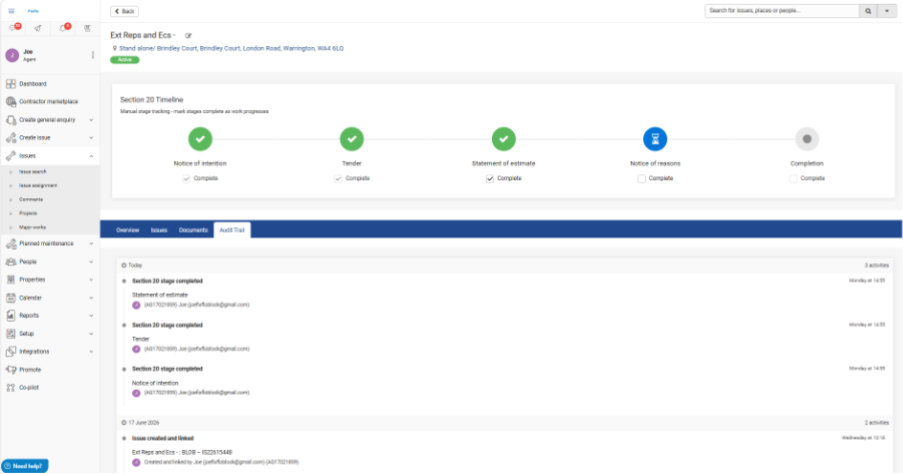
Every project includes an audit trail showing activity and changes made to the record.
This can be used to:
- Review project history
- Investigate changes
- Support troubleshooting activities
Frequently Asked Questions
Can I upload multiple documents?
Yes. The document upload feature supports multiple file uploads and drag-and-drop functionality.
Can projects be archived?
Yes. Projects can be archived from the Major Works List View to reduce clutter while retaining historical records.
Future Enhancements
We continue to develop Section 20 Major Works and plan to introduce additional functionality over time, including further workflow enhancements, reporting capabilities and project management features.
Was this article helpful?
That’s Great!
Thank you for your feedback
Sorry! We couldn't be helpful
Thank you for your feedback
Feedback sent
We appreciate your effort and will try to fix the article